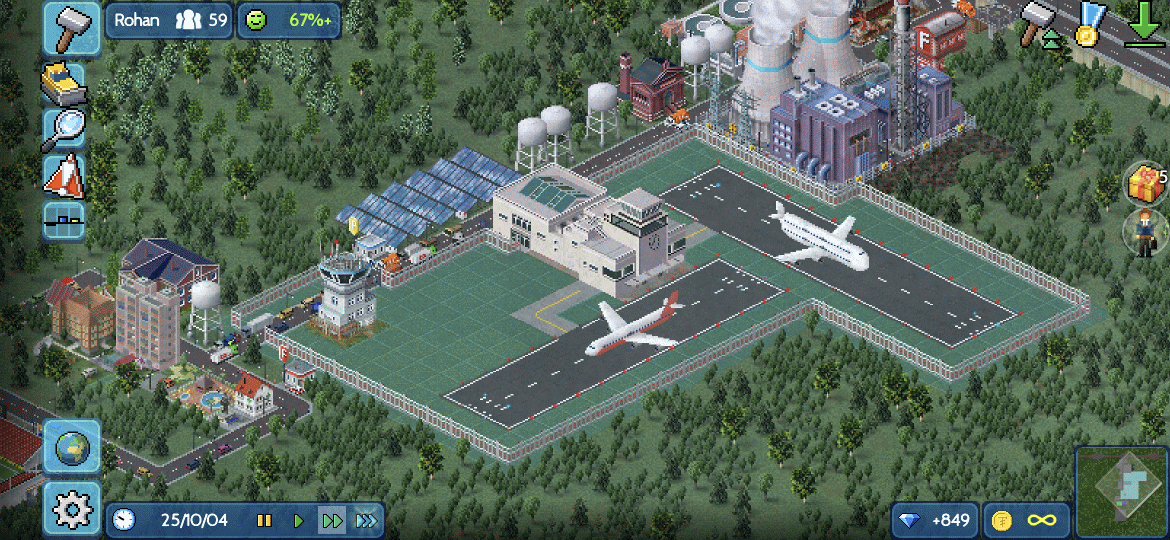
How to build an airport in TheoTown
A while back all the windows in our apartment were replaced, which necessitated that we clear the space in front of the windows. This included the table on which my desktop PC is located and that my kid uses to play Cities: Skylines II, so we needed a temporary replacement city-builder for mobile. I had heard of this game called TheoTown and went with that, and it turns out it feels immediately familiar for those who have played city-builders, especially of the older type like SimCity 2000, which is nice.
In the game I, for some reason, found it very unintuitive on how to build an airport. You cannot just plop it down and be done with it, no, you need to place all the runways and individual buildings separately. So, in case you’ve ever wondered how to build an airport in TheoTown, here’s a set of detailed instructions on how exactly to do that.
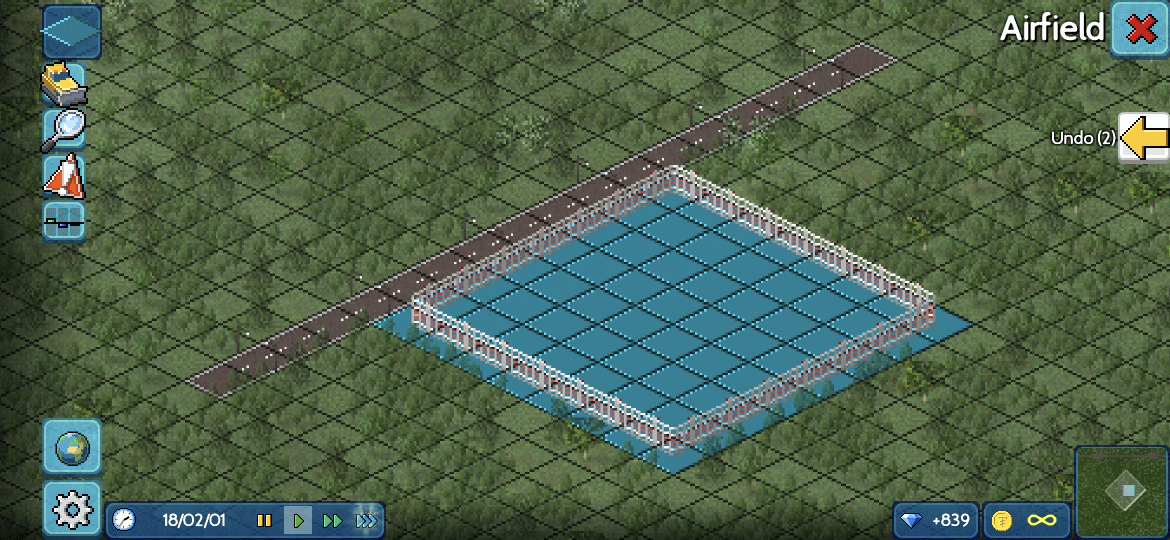
First, navigate to the Transport menu and the Airport submenu. There, select Airfield and then create some area on your map. Remember, an airport takes a lot of space, but you don’t need to get it right the first time, as the buildings will conveniently expand the airfield area:
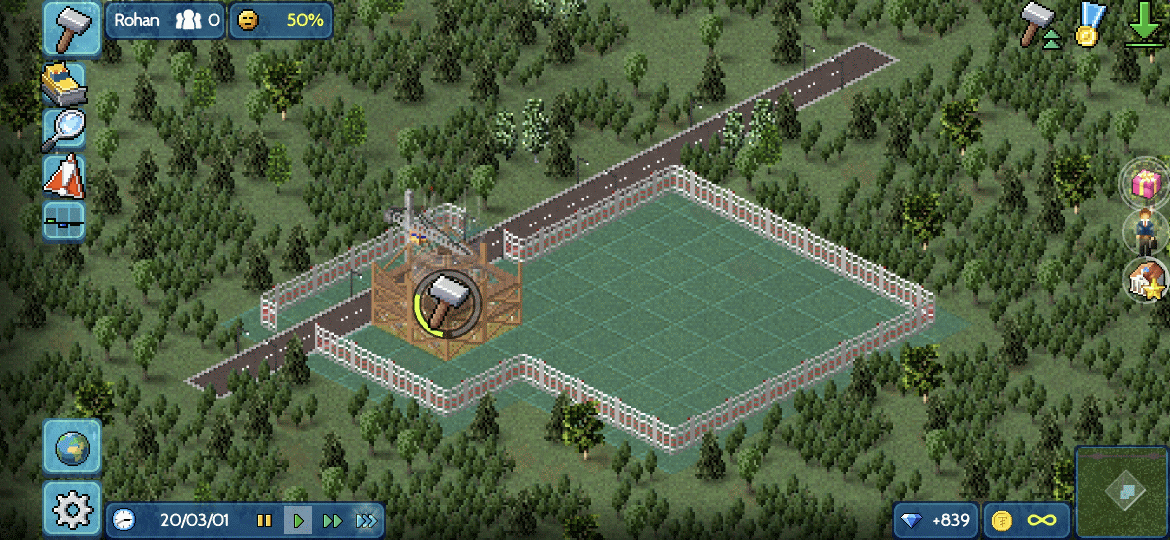
Then, build the Tower. Here you can see I’ve placed the tower to the corner of the airfield and it has expanded the area even over the road – which is not a problem. When you’re placing the tower some squares around it will have a yellow outline, and those are just the squares that will become Airfield area:
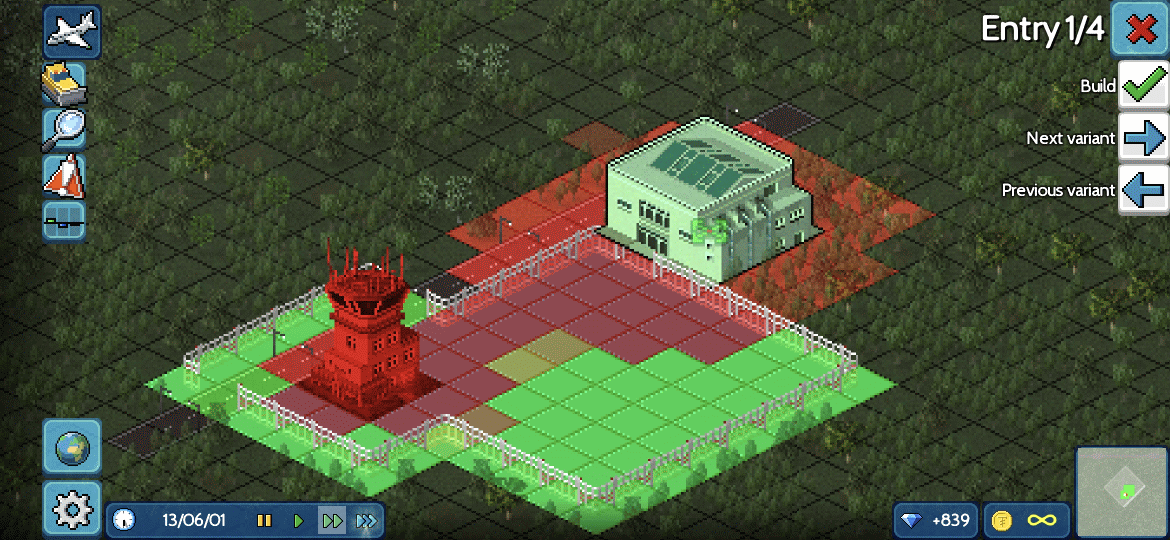
Then, build an entry. I would place this next to a road, as it allows people to enter the airport. Note that when you’ve selected this building the map will display red squares. Do not be alarmed, those are just illustrating the noise. (You should not have residential buildings in noisy areas.)
Next, you are going to need a Gate. There’s a few options, pick any that pleases you. Note that the Gate will need to be connected to a Runway with a Transport road later on, so put it somewhere where it has access to your future Runway. Note, the squares with the yellow outline again depict the area that is going to be extended to become Airfield:
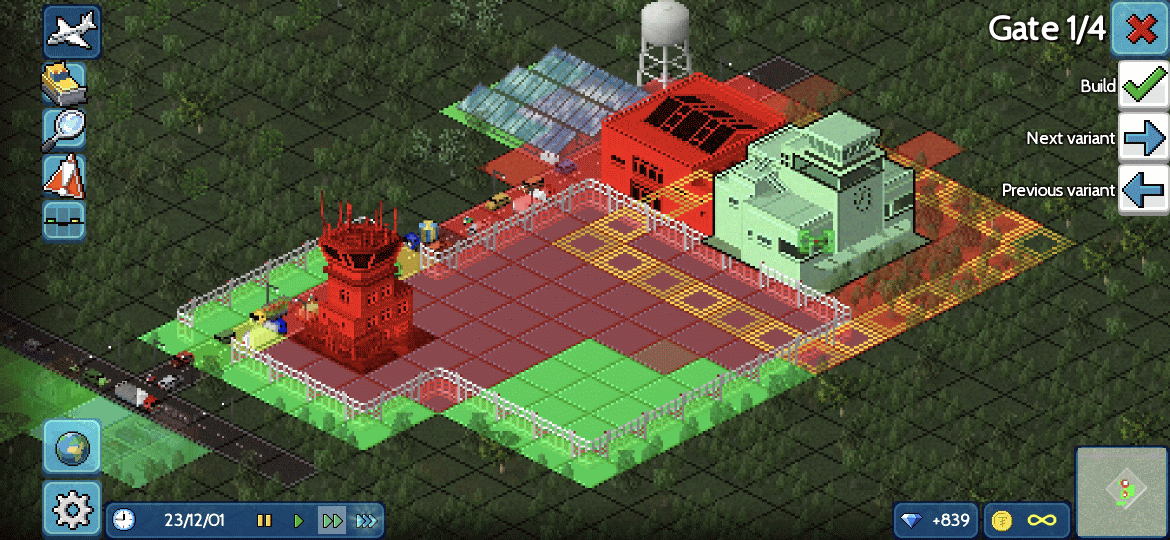
Once the Gate is completed you will see a red road symbol over it, meaning it’s not connected to a Runway (well duh), so let’s make a Runway. Select it from the menu and tap somewhere on the map, and it’ll look like this:
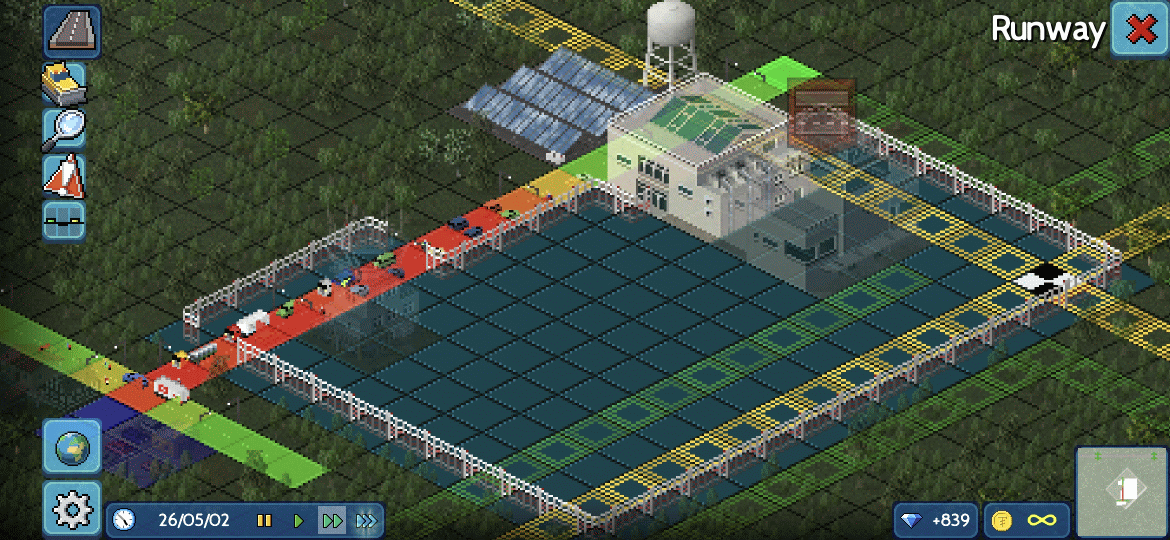
Now this is where it got confusing to me. I’ve tapped the square that’s now marked with a black-and-white pattern, but there are also rows of squares outlined with yellow and green. The trick is to now tap one of the green squares, because that will give the Runway the width it needs:
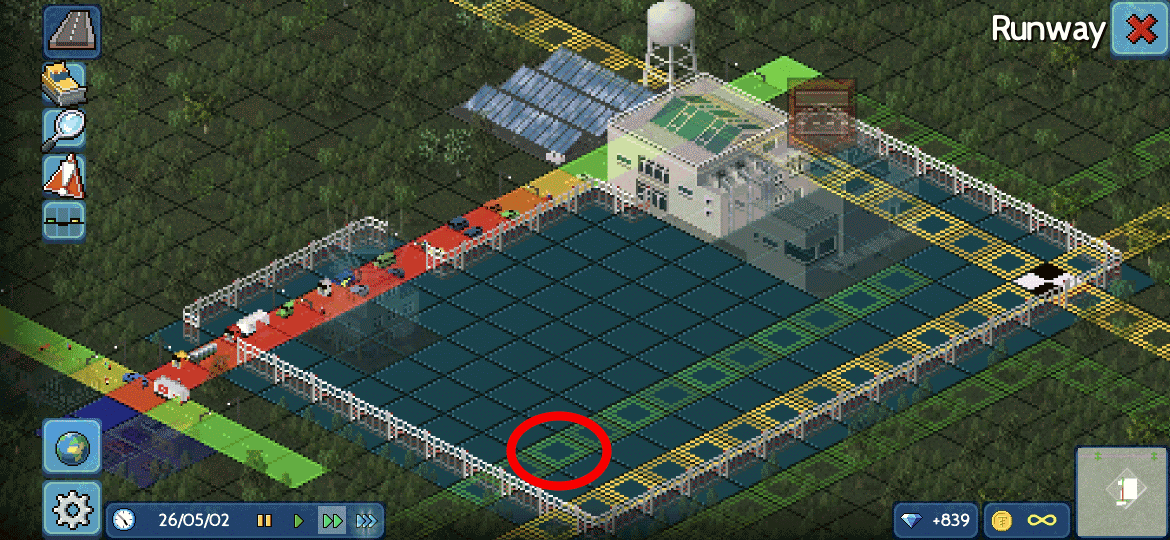
And voilà:
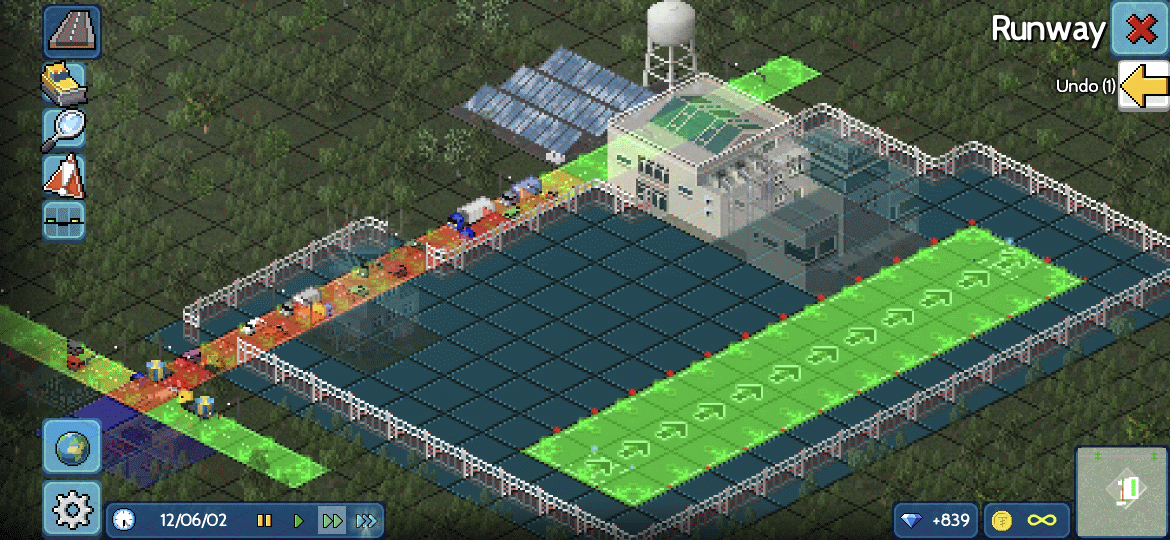
Now create that Transport road between your Gate and Runway. Those you create just like any other roads:
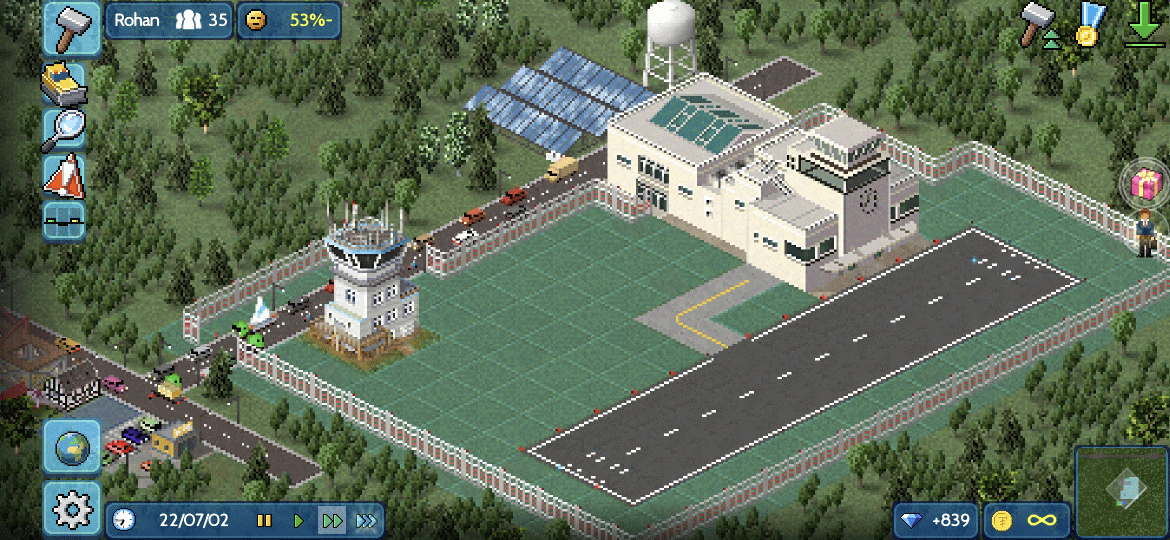
…And we’re still not there yet! Now we need to get planes and assign them to Runways – or lanes, as they’re now called in the setup system. Tap on any of your Airport buildings to open the specialized Airport view:
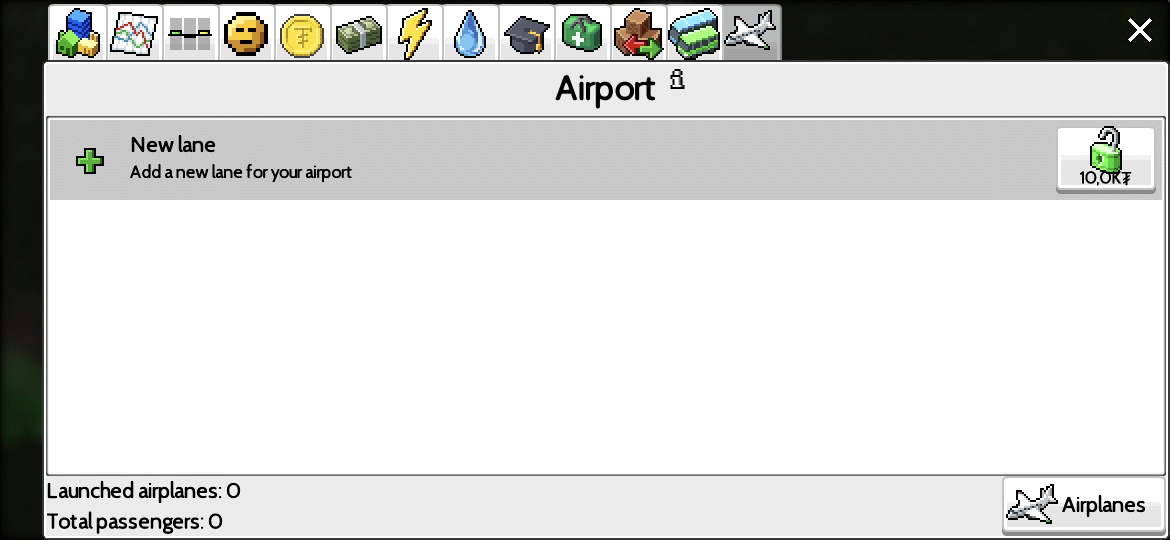
Then unlock a lane:
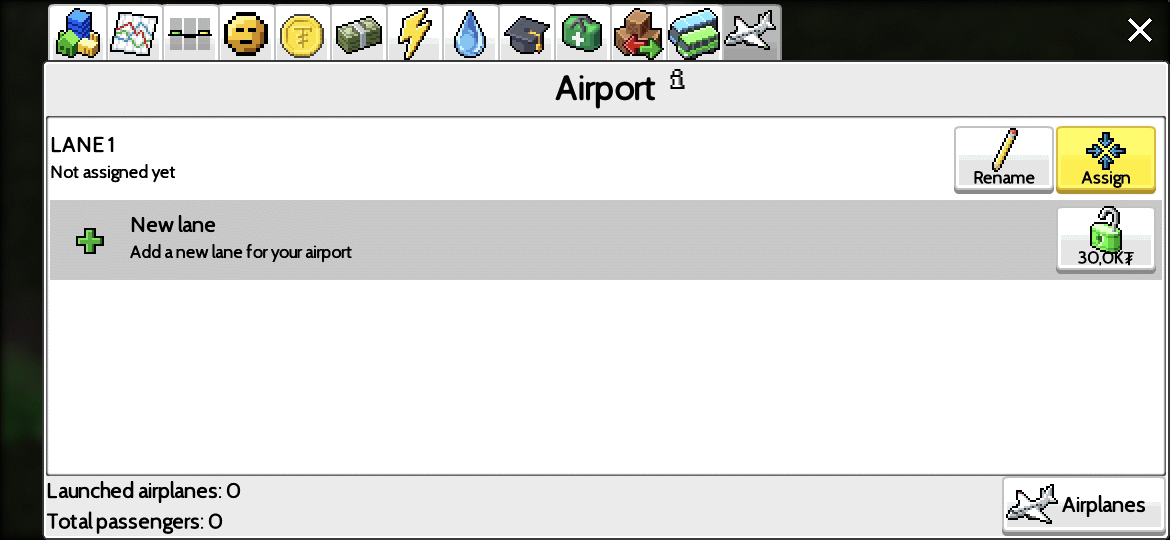
Then click Assign and it takes you to a map where you need to tap your Runway:
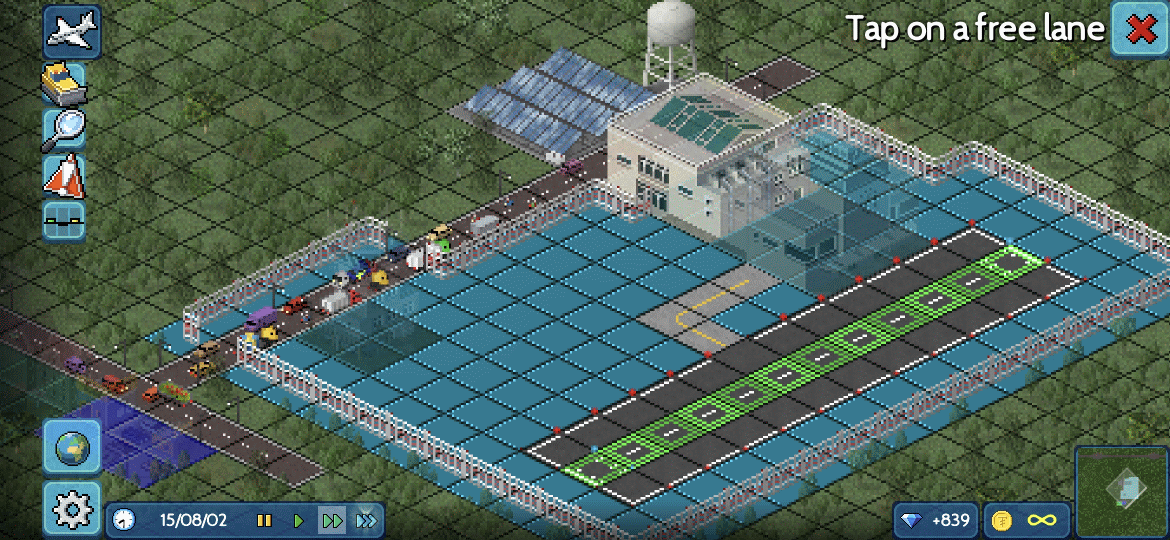
OK, the lane has been assigned to your Runway! Now we’re only missing some planes! Tap the Add button with the plane icon on your new lane:
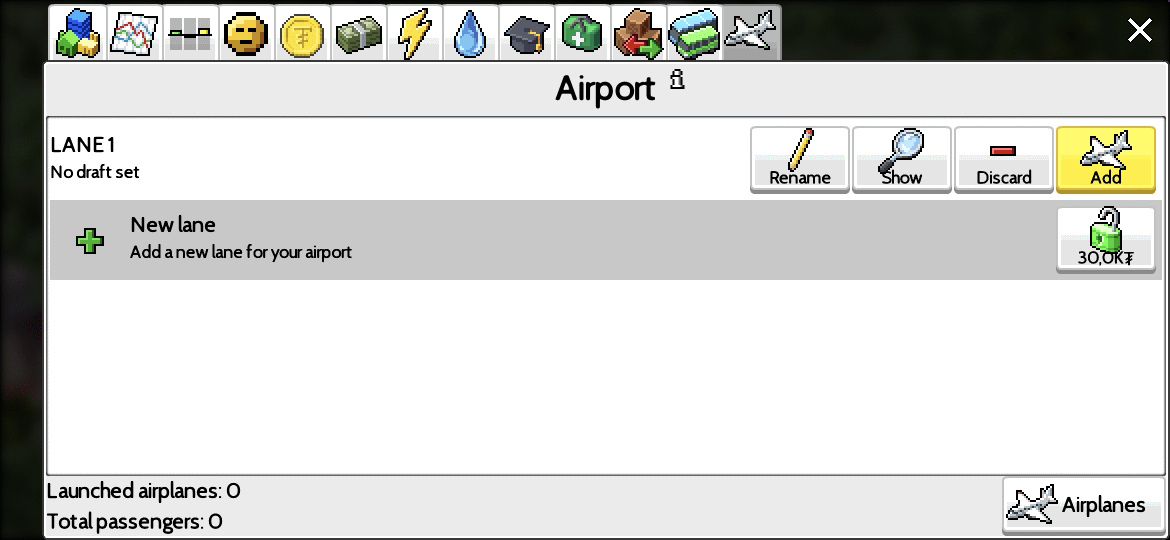
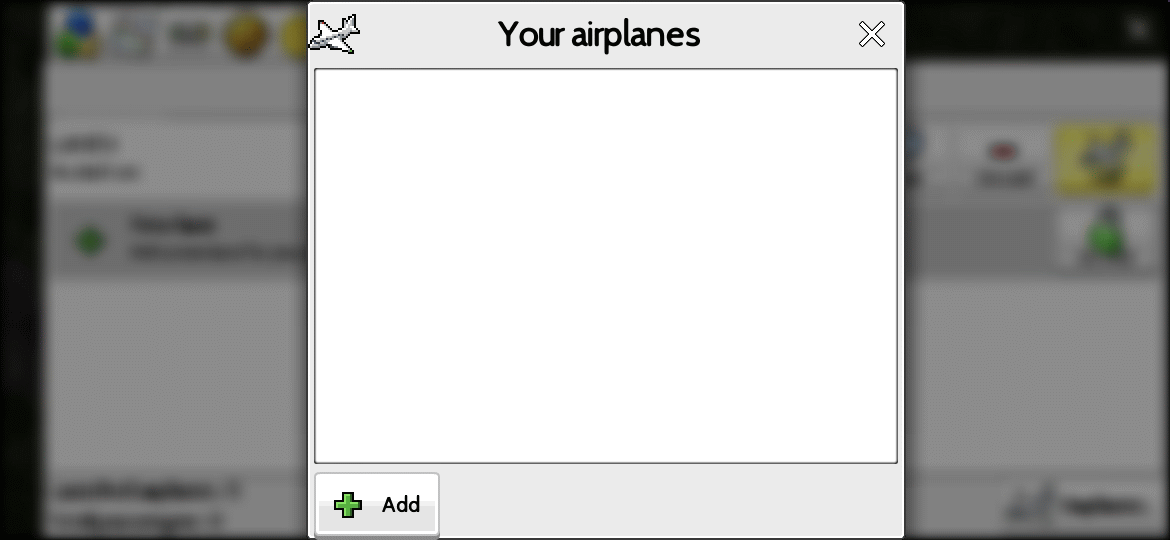
You’ll now see an empty list of planes, so click Add, then buy one of the available planes:
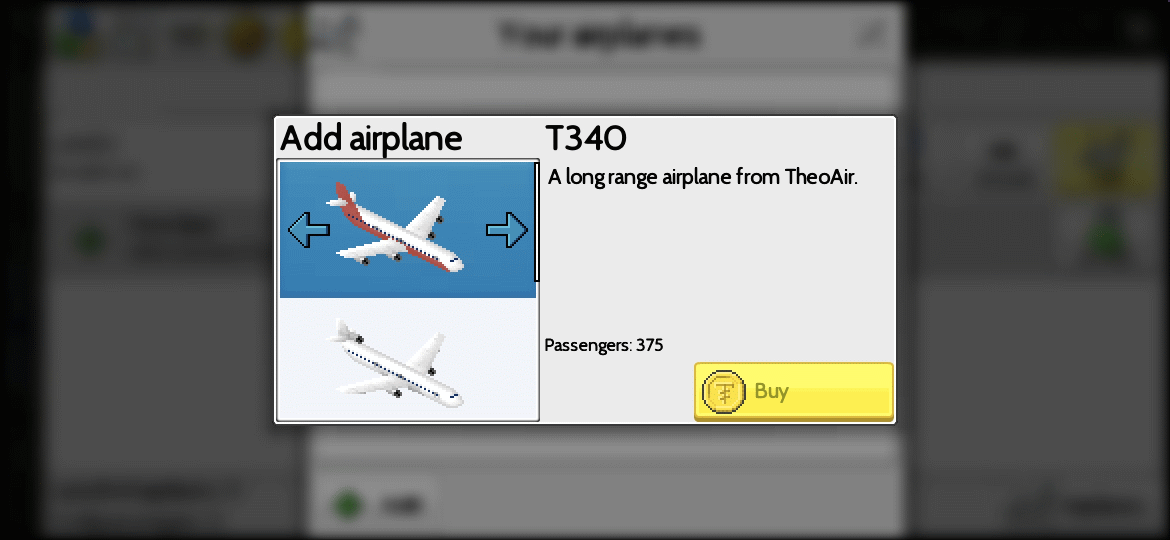
After you’ve bought a plane, select Use this one:
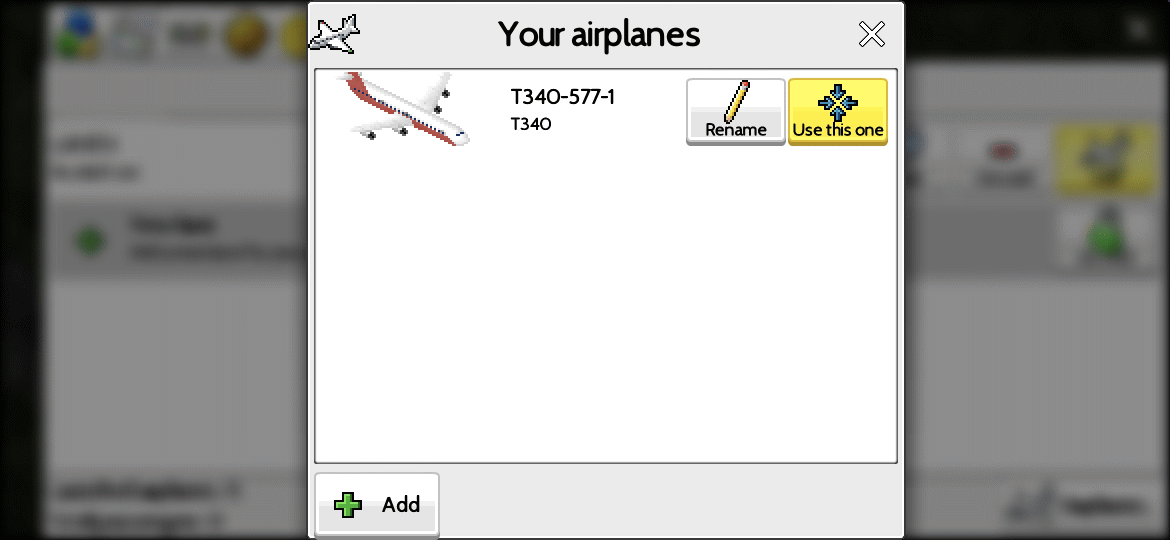
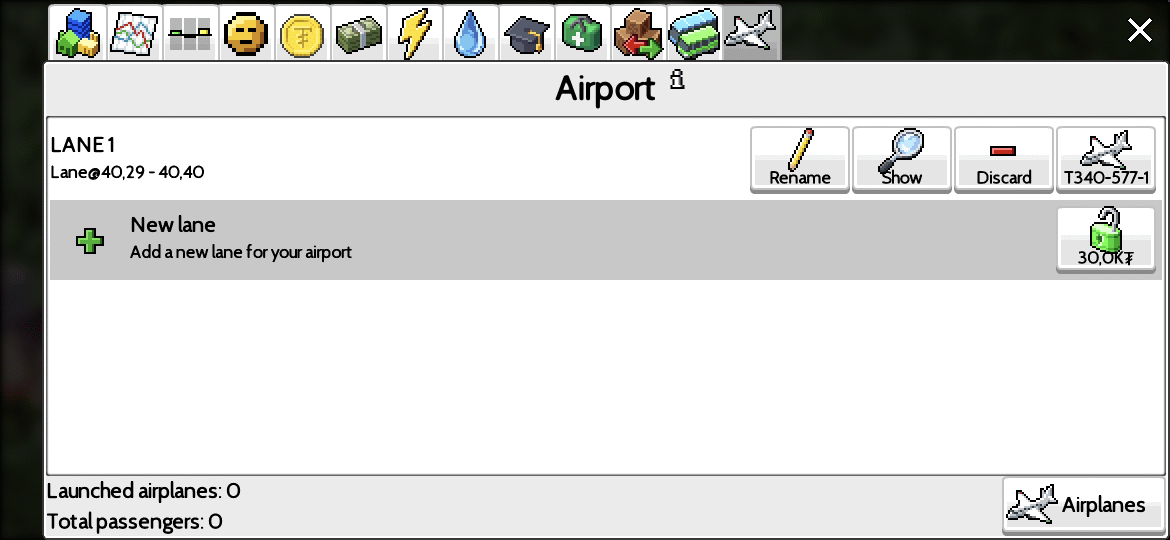
And there you have it, your Airport is actually ready and functional now:
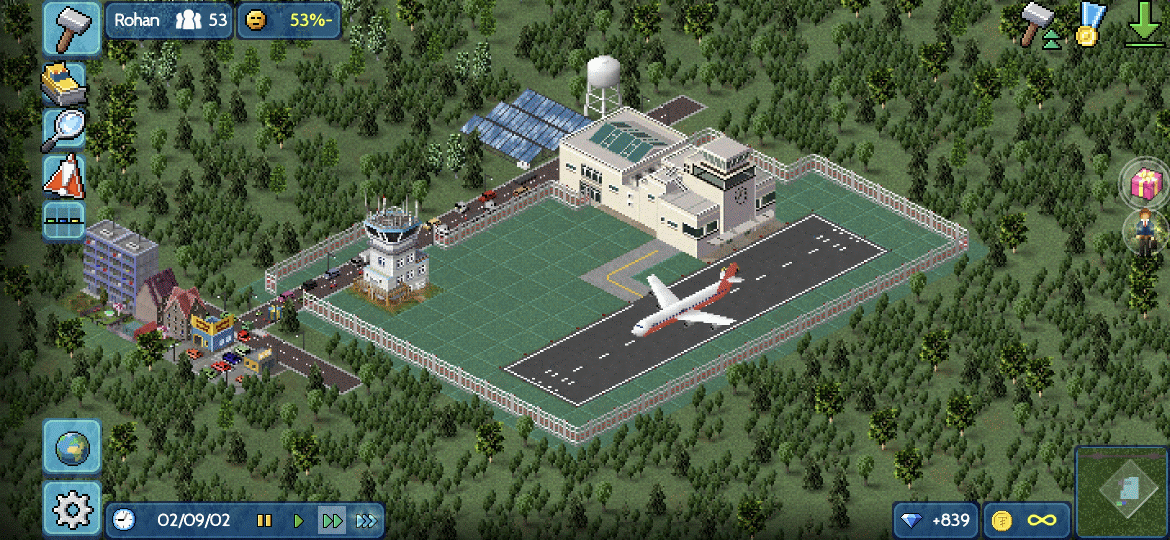
Return to the map and wait for a while, you should catch a glimpse of a plane visiting your new airport!
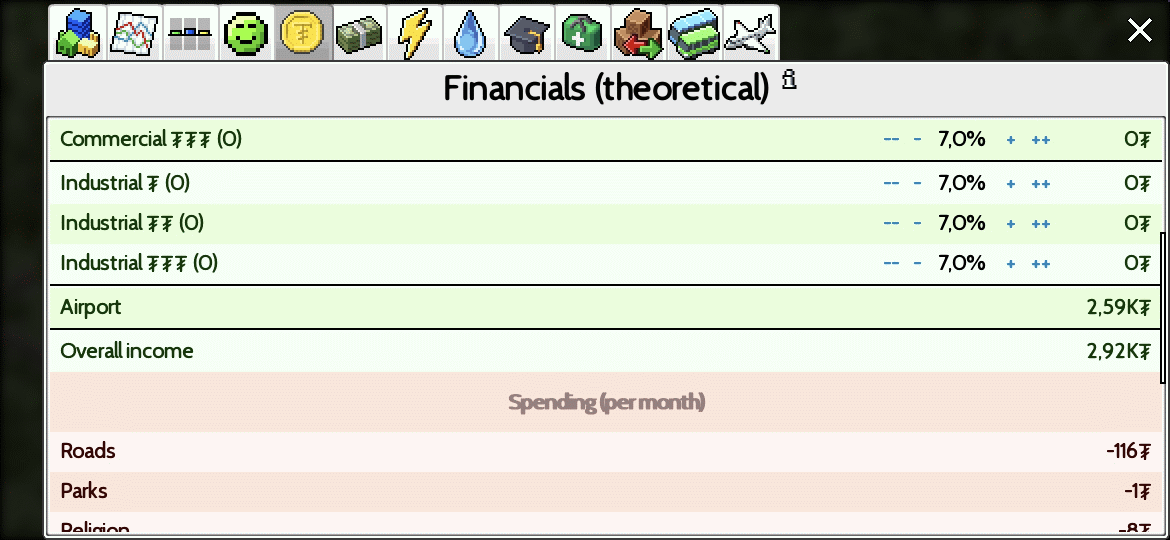
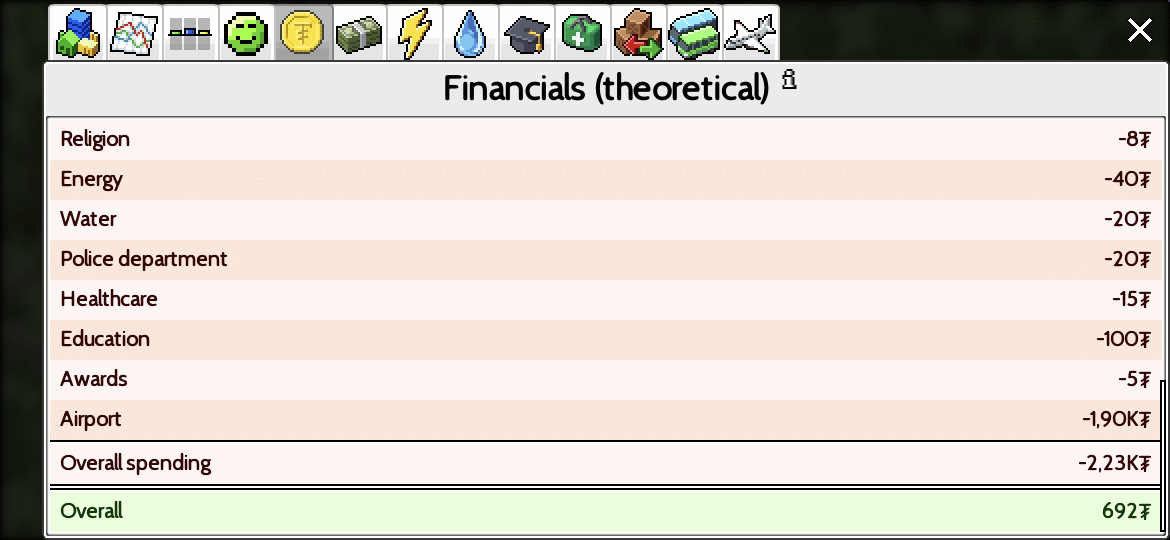
If you check your Financials now, you should see the airport is hopefully making more money than it’s spending – I created it in the sandbox mode with unlimited money so my financials are just theoretical, but if your city has an actual budget then your airport should bring you some money in. In my case the airport brings 2.59KT of income and spends 1.90KT, so it’s solidly 0.69KT positive cash flow:
Finally, feel free to expand your airport with new gates and runways and planes: